Managing Organizations and Teams
Learn how to set up and manage organizations in Uhura. Organizations are shared workspaces where teams can collaborate on AI agents, manage access permissions, and work together efficiently.
Prerequisites
- An active Uhura account
- Owner or Admin role in an organization
Estimated time: 10 minutes
Navigate to Organization Settings
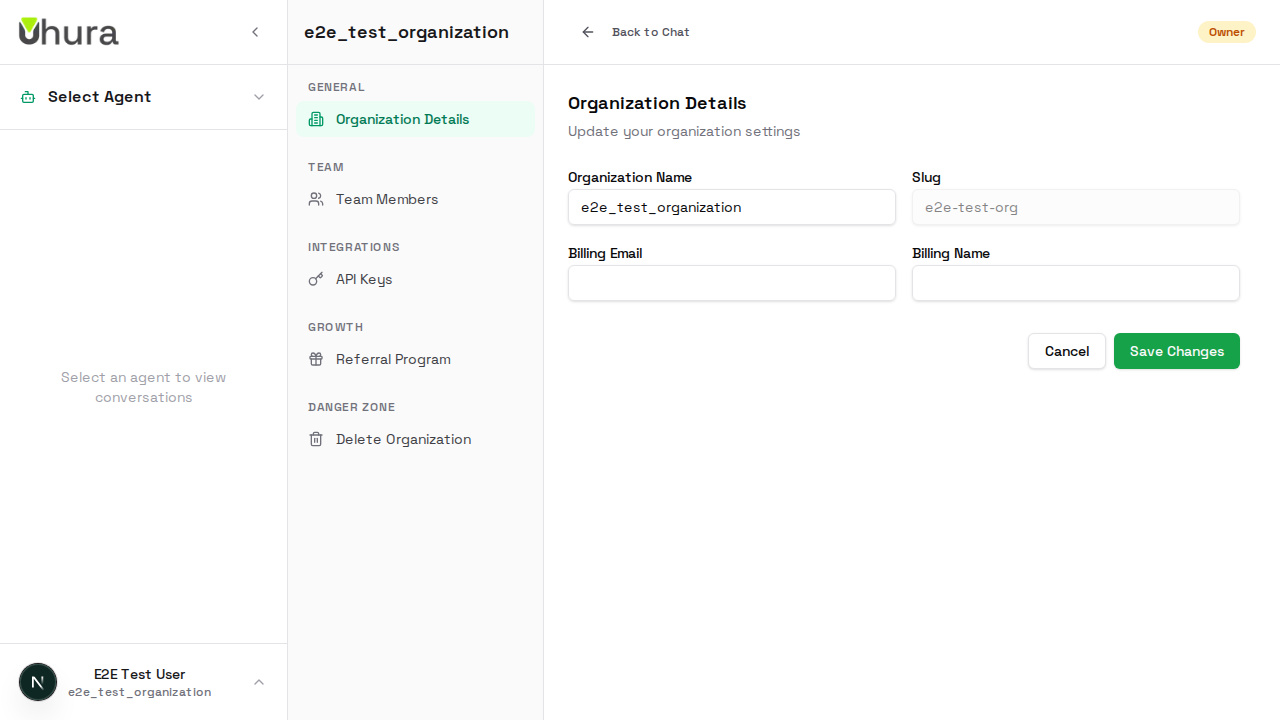
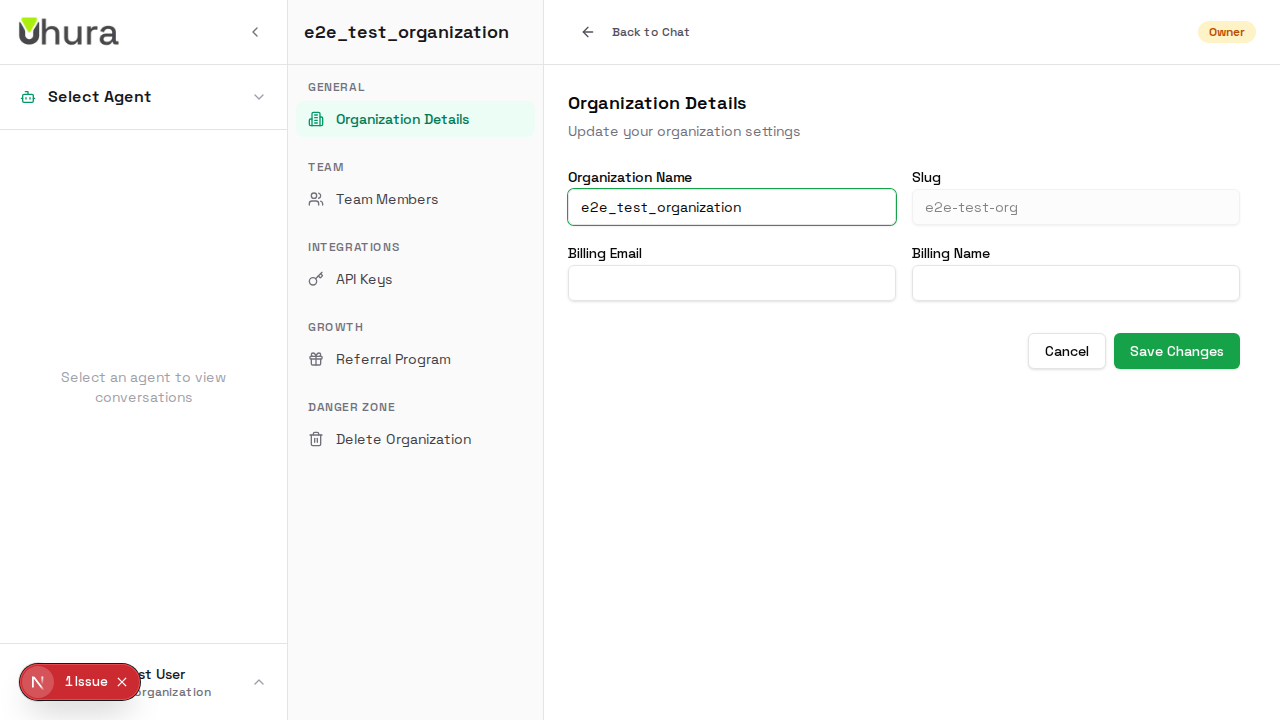
Go to Settings > Organization to manage your workspace. Organizations are shared workspaces where teams collaborate on agents, share conversations, and manage access together.
View Organization Details
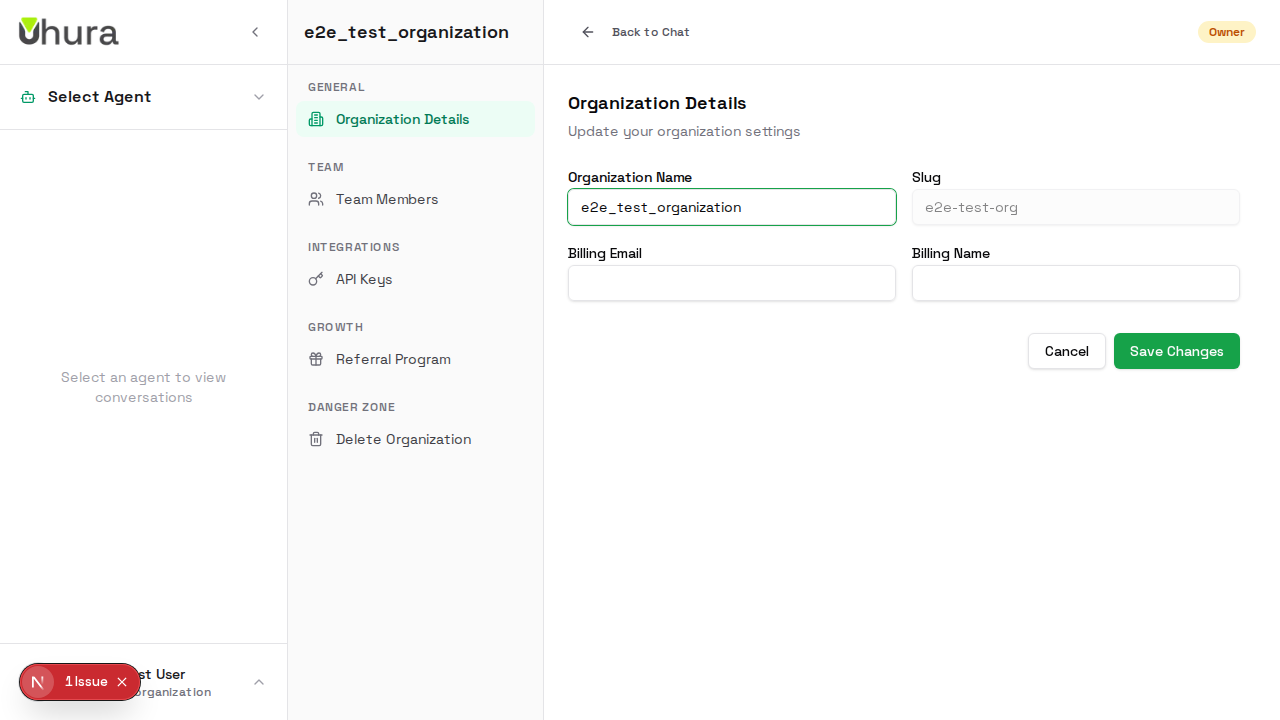
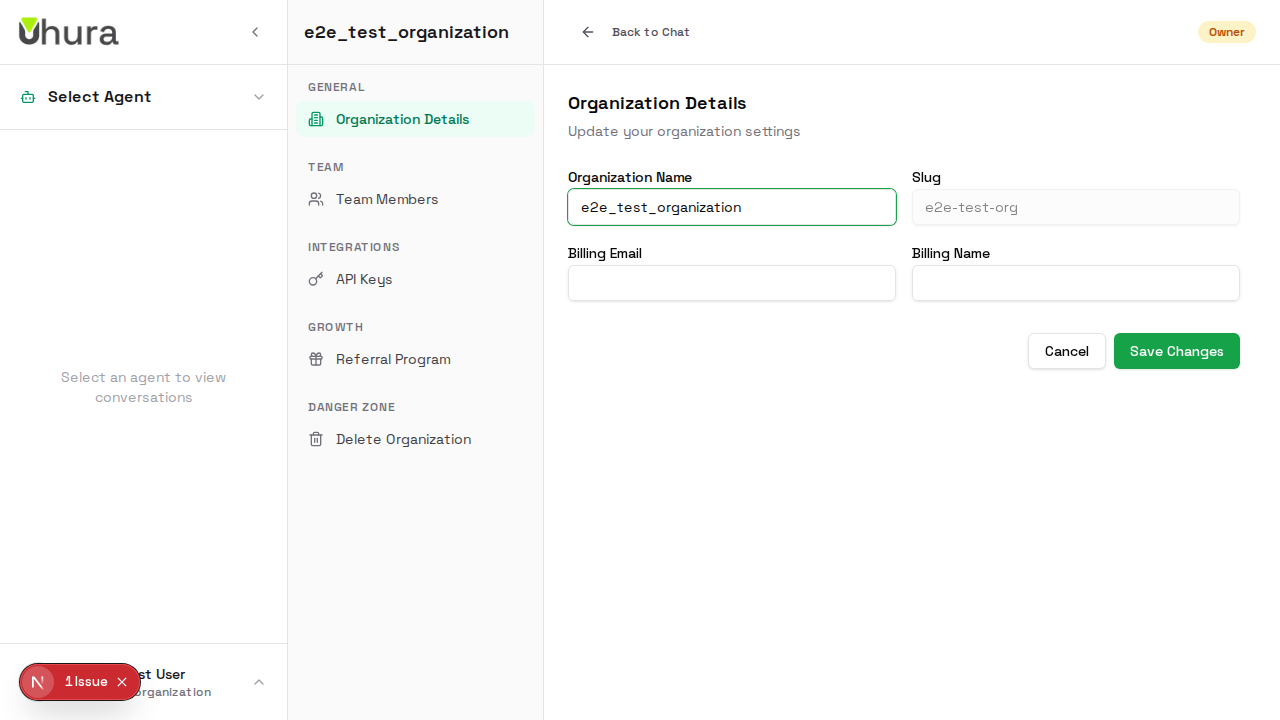
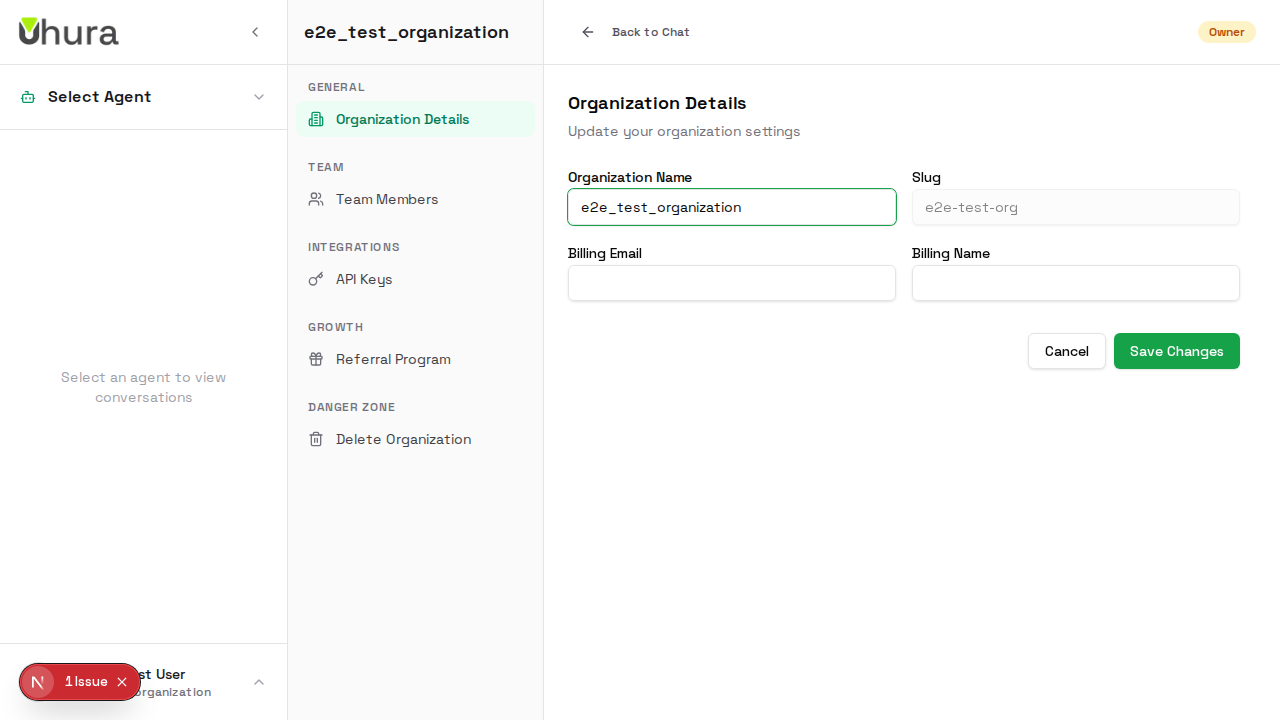
The organization settings page shows your workspace name, slug (URL identifier), and current membership. Organization owners have full control over settings and member management.
Edit Organization Name
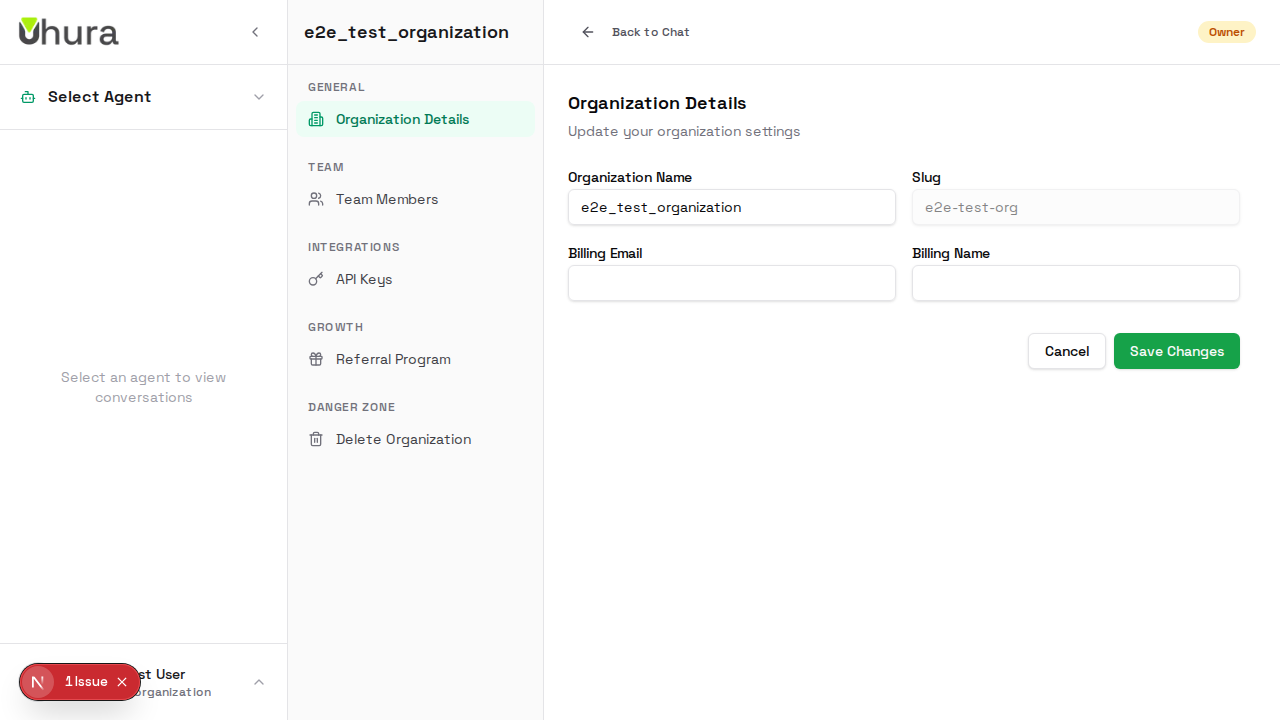
Update your organization name to reflect your team or company. This name appears in the workspace switcher and is visible to all members.
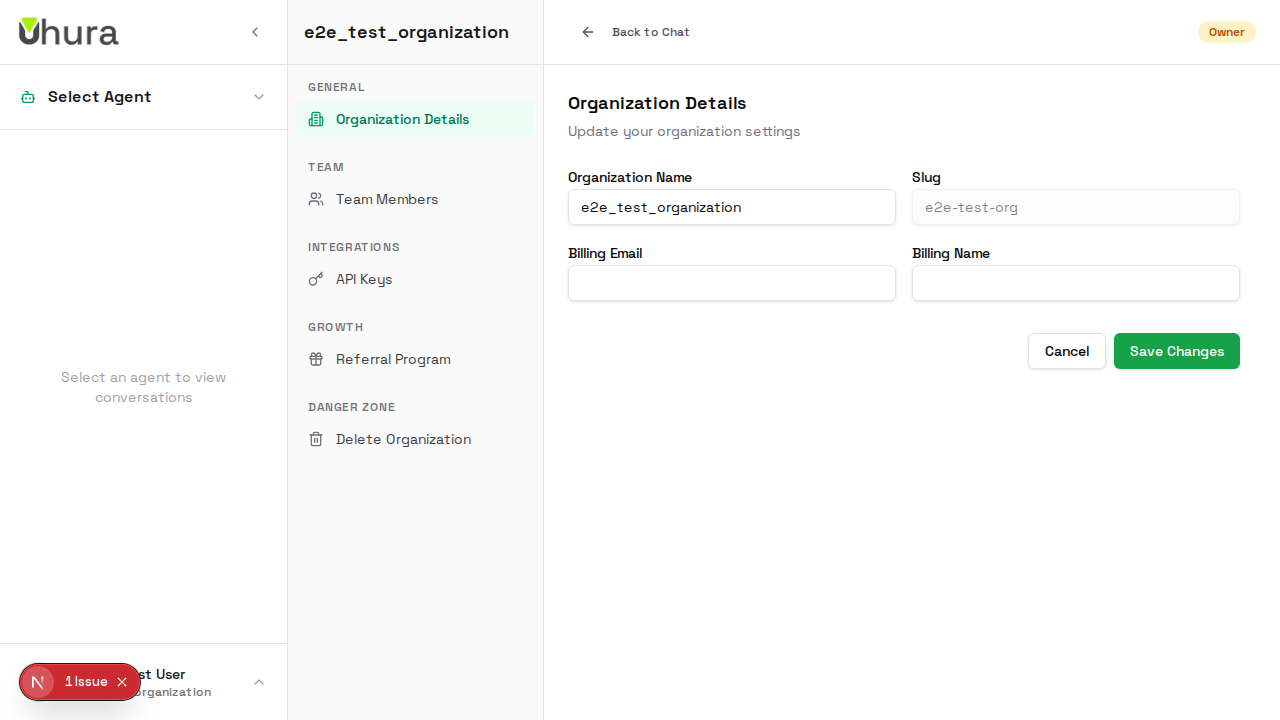
Choose a clear name that identifies your team, like "Acme Support Team" or "Marketing Department".
View Team Members
The Members section shows everyone in your organization. Each member has a role: Owner (full control), Admin (manage settings), or Member (use agents). Owners can change roles or remove members.
Invite Team Members
Click "Invite Member" to add new people to your organization. Enter their email address and select their role. They'll receive an email invitation to join your workspace.
Start new members with the "Member" role. You can always upgrade them to Admin later if needed.
Understanding Member Roles
Organizations have three roles: Owner (can do everything including delete the org), Admin (manage settings and members, but can't delete the org), and Member (use agents and view conversations, but can't change settings).
Be careful when assigning the Owner role. Owners can remove other owners and delete the entire organization.
Create a New Organization
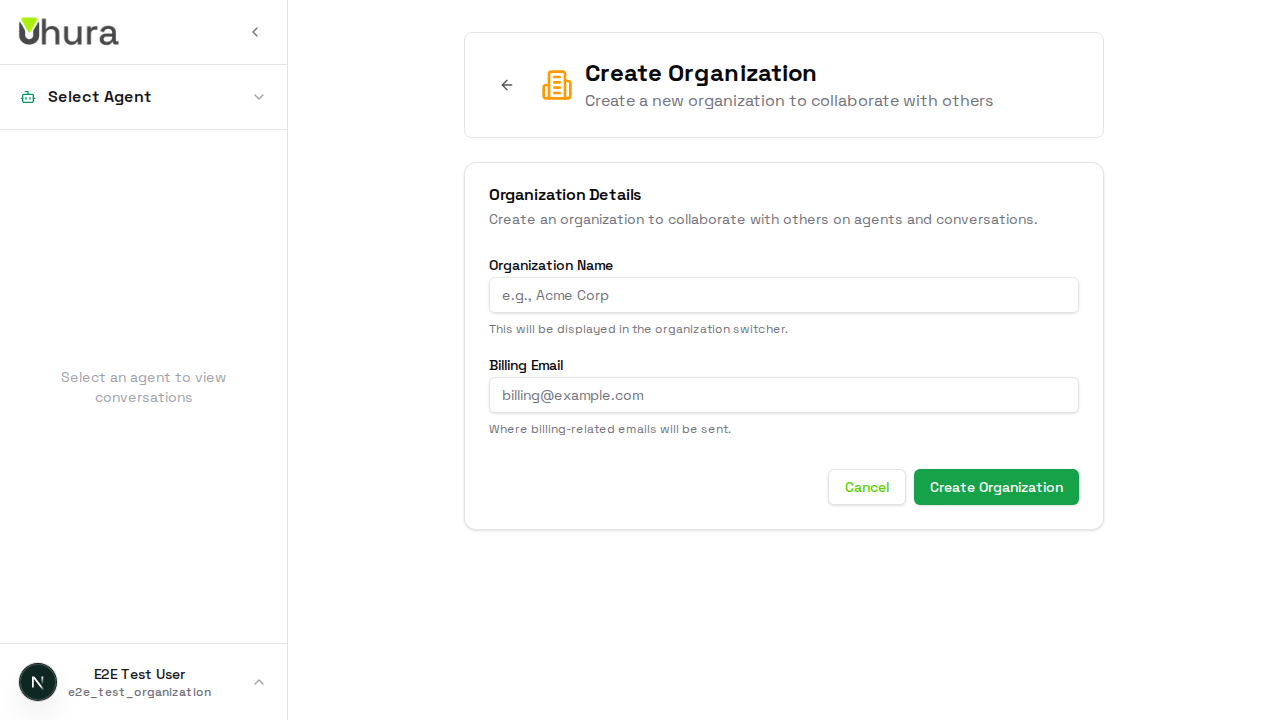
Need a separate workspace? Click your organization name in the sidebar and select "Create Organization" to set up a new workspace. Each organization has its own agents, members, and billing.
Useful for separating departments, clients, or projects that need different access controls.
Configure New Organization
Enter a name and slug for your new organization. The slug becomes part of your workspace URL. Choose something short and memorable, using only lowercase letters, numbers, and hyphens.
Expected result: A new organization is created and you become its owner.