Uploading Documents to Your Agent
Learn how to give your AI agent expert knowledge by uploading documents. Your agent will automatically search and reference these documents when answering questions, providing accurate, grounded responses instead of generic answers.
Prerequisites
- An existing agent (see "Creating a New AI Agent")
- Documents to upload (PDF, DOCX, TXT, MD, CSV, HTML, or JSON)
Estimated time: 5 minutes
Navigate to Agent Settings
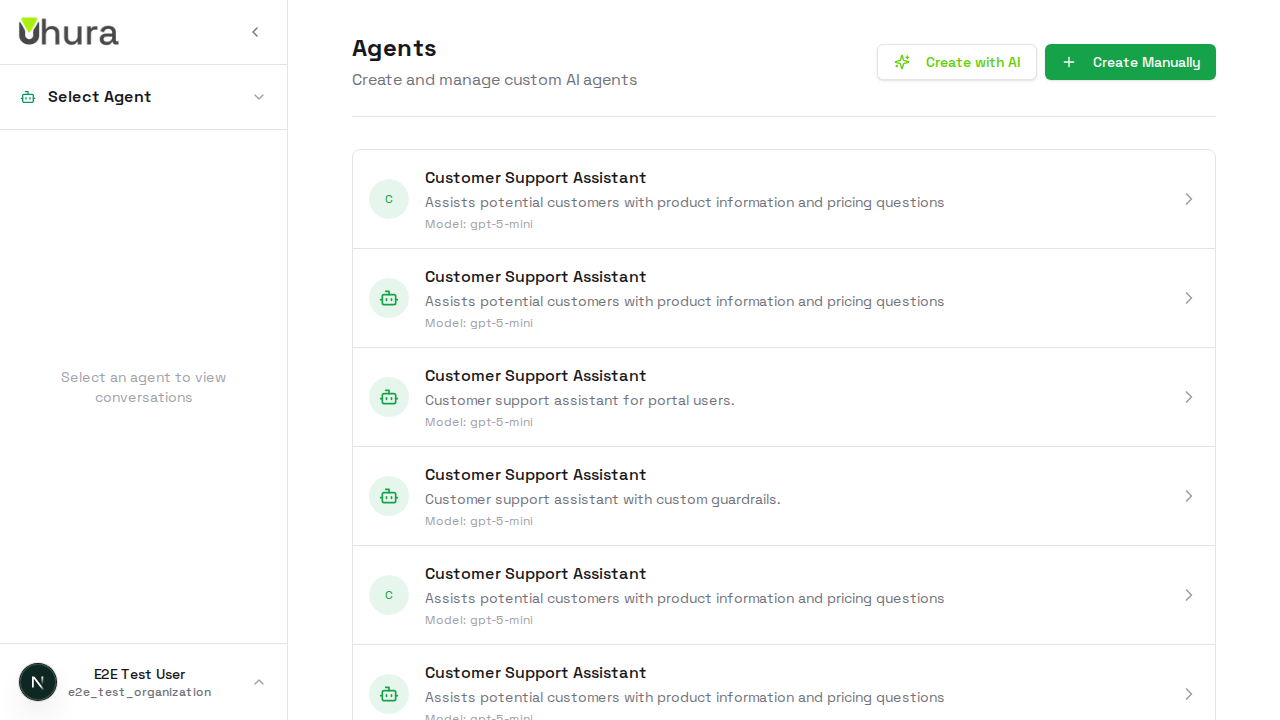
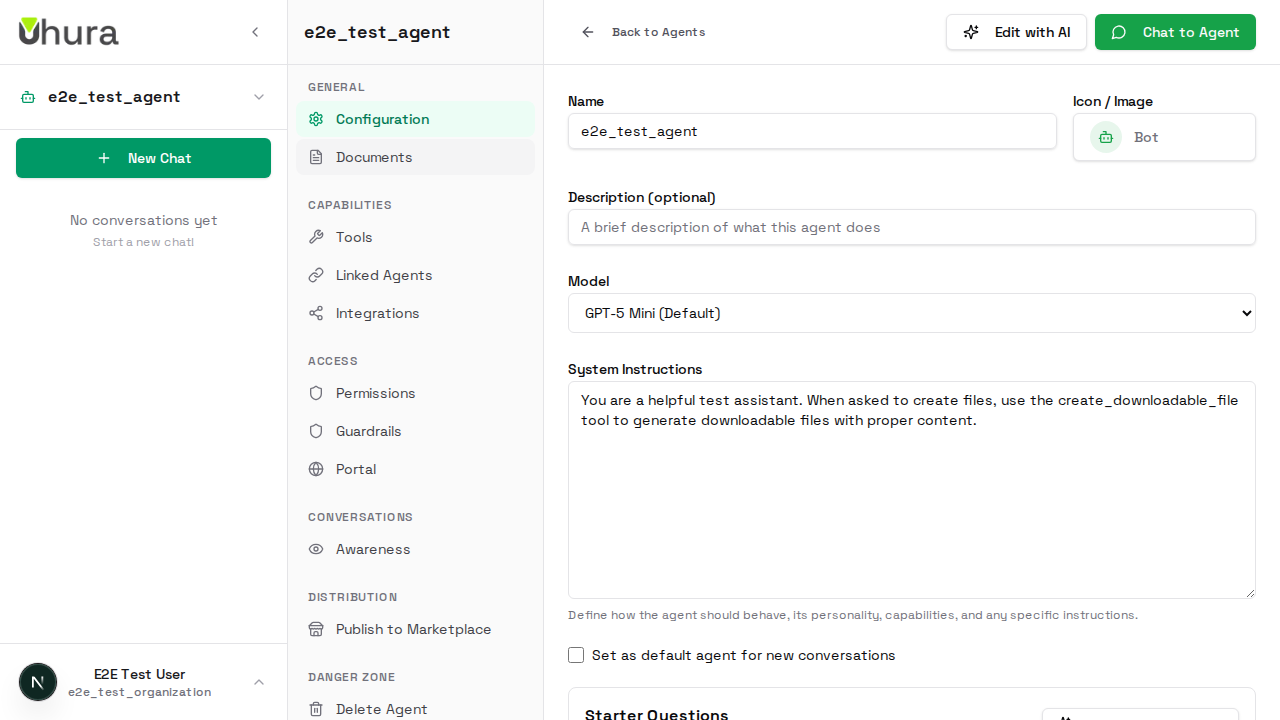
From your dashboard, go to Settings > Agents and click on the agent you want to configure. This opens the agent configuration page.
Open the Documents Tab
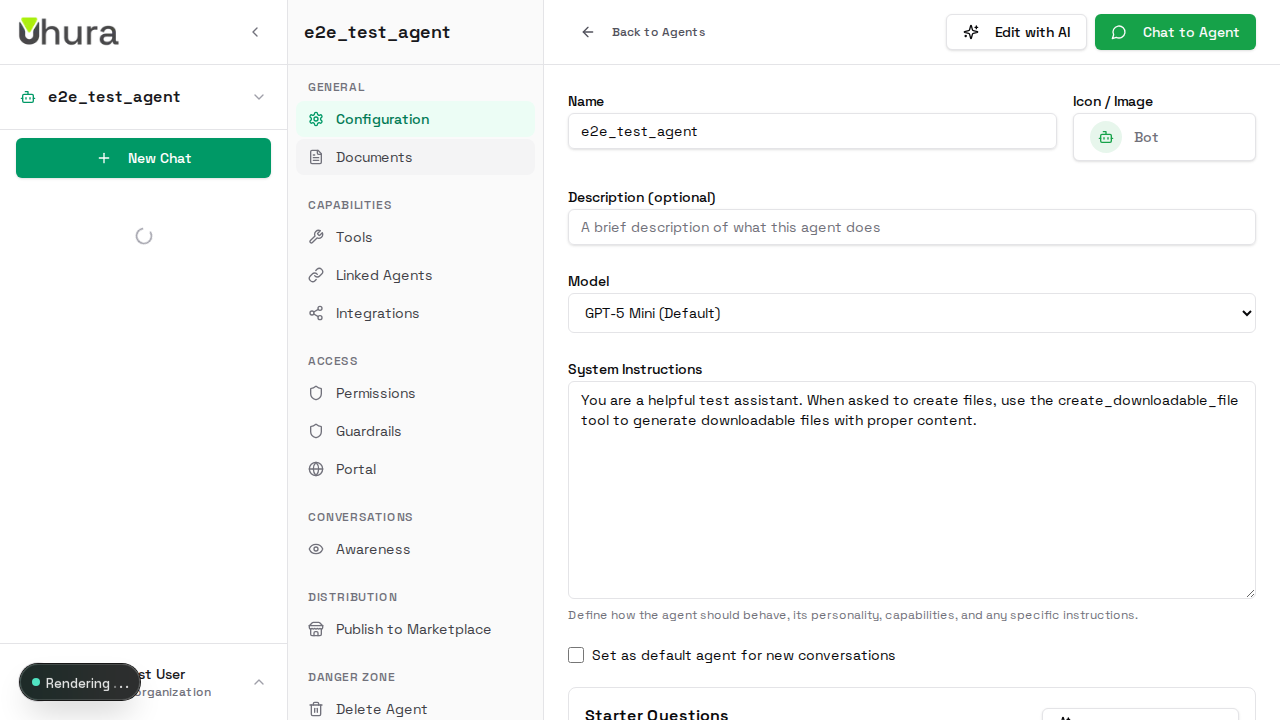
In the agent settings sidebar, click on "Documents" under the General section. This is where you manage your agent's knowledge base - all the documents your agent can search and reference.
View the Documents Area
The Documents tab shows all uploaded files and their processing status. You can drag and drop files here or click to browse. Supported formats include PDF, Word (DOCX), Text, Markdown, CSV, HTML, and JSON files up to 512 MB.
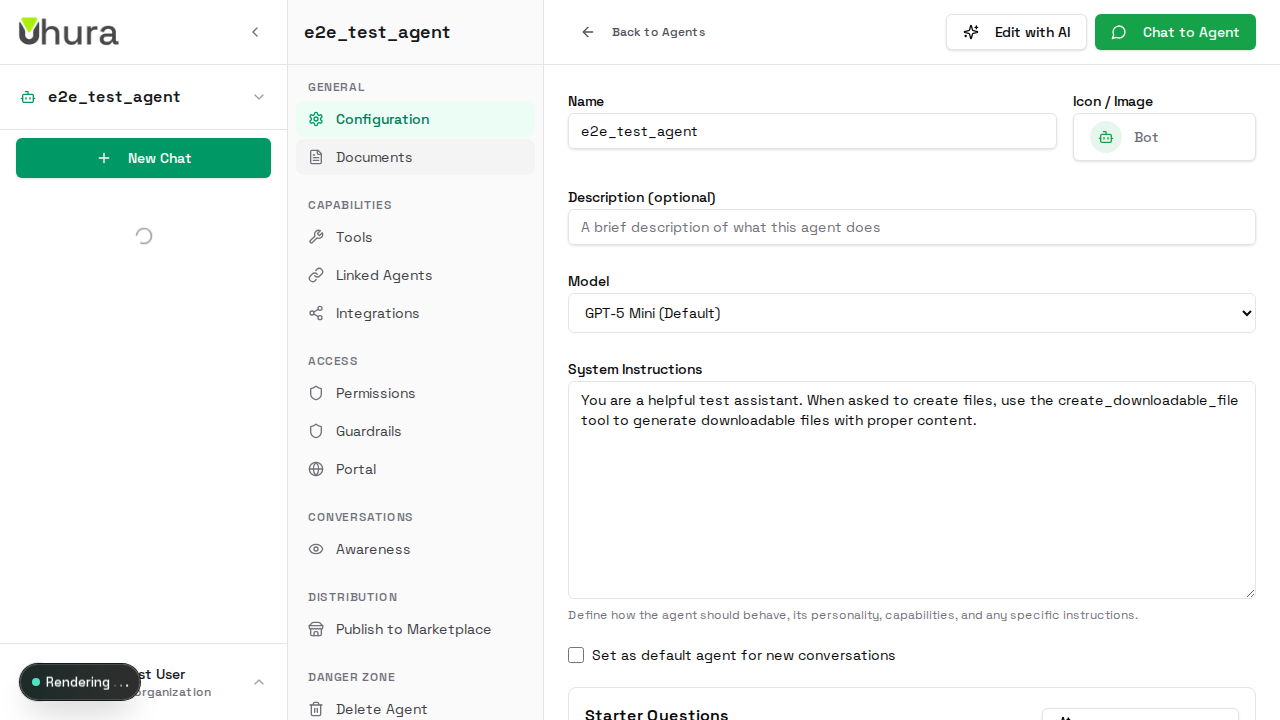
Well-structured documents with clear headings work best. The AI automatically chunks and indexes your content for semantic search.
Upload a Document
Click the upload area or drag and drop your document. The system will process it automatically, extracting content and creating searchable indexes. Processing typically takes a few seconds to a minute depending on file size.
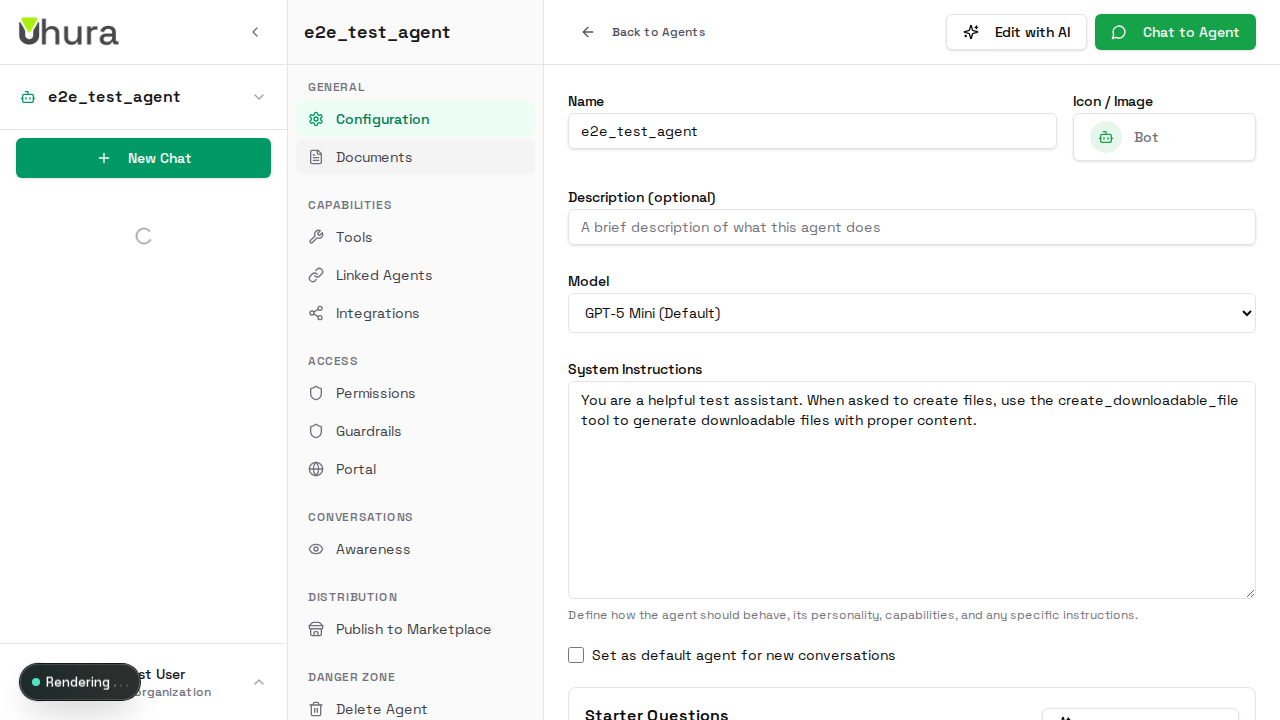
Upload product manuals, FAQs, policies, or any documentation your agent should reference when answering questions.
Documents are processed by AI for indexing. Avoid uploading sensitive credentials or secrets.
Monitor Processing Status
After uploading, documents show their processing status: "Processing" while being indexed, "Ready" when fully searchable, or "Error" if something went wrong. Once ready, your agent can search and cite this content.
Expected result: Document appears in the list with a status indicator.
Test Your Agent's Knowledge
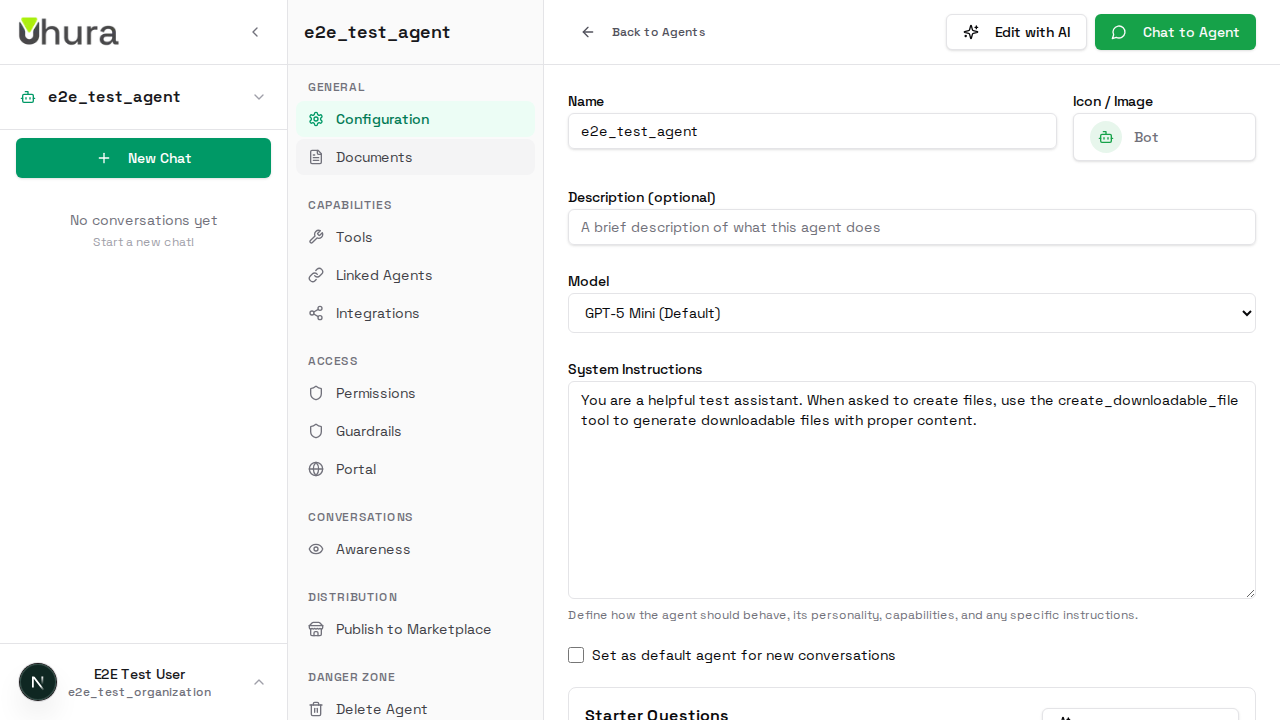
Start a conversation with your agent and ask questions about your uploaded documents. The agent will search the knowledge base and respond with accurate information from your files, often citing specific sections.
Ask specific questions to verify the agent found the right content. For example: "What does the manual say about warranty terms?"