Generating Downloadable Files
Learn how to use the AI to generate and download files directly from your chat. This feature allows you to create documents, data exports, configuration files, and more through natural language requests.
Prerequisites
- An active Uhura account with chat access
- Access to an agent with file generation capabilities
Estimated time: 2 minutes
Navigate to Chat
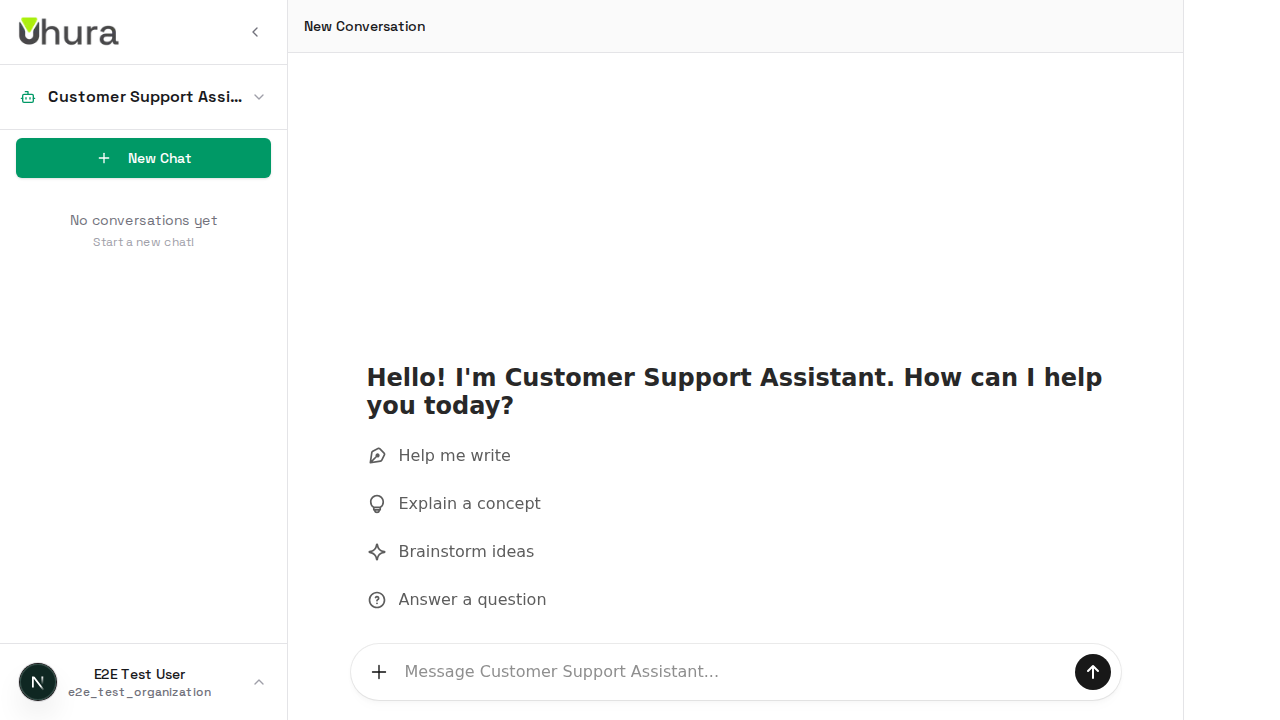
Go to the chat interface from your dashboard. This is where you can interact with your AI agent and request file generation.
The AI can generate files for reports, data exports, configuration files, and documentation.
Select an Agent
If you have multiple agents, select one from the dropdown or sidebar. The agent's capabilities determine what types of files it can generate.
Some agents may have specific file generation tools enabled.
Type Your File Request
In the chat input, describe what file you want to create. Be specific about the file type and content. Example: "Create a markdown file with a project README template" or "Generate a JSON file with sample user data."
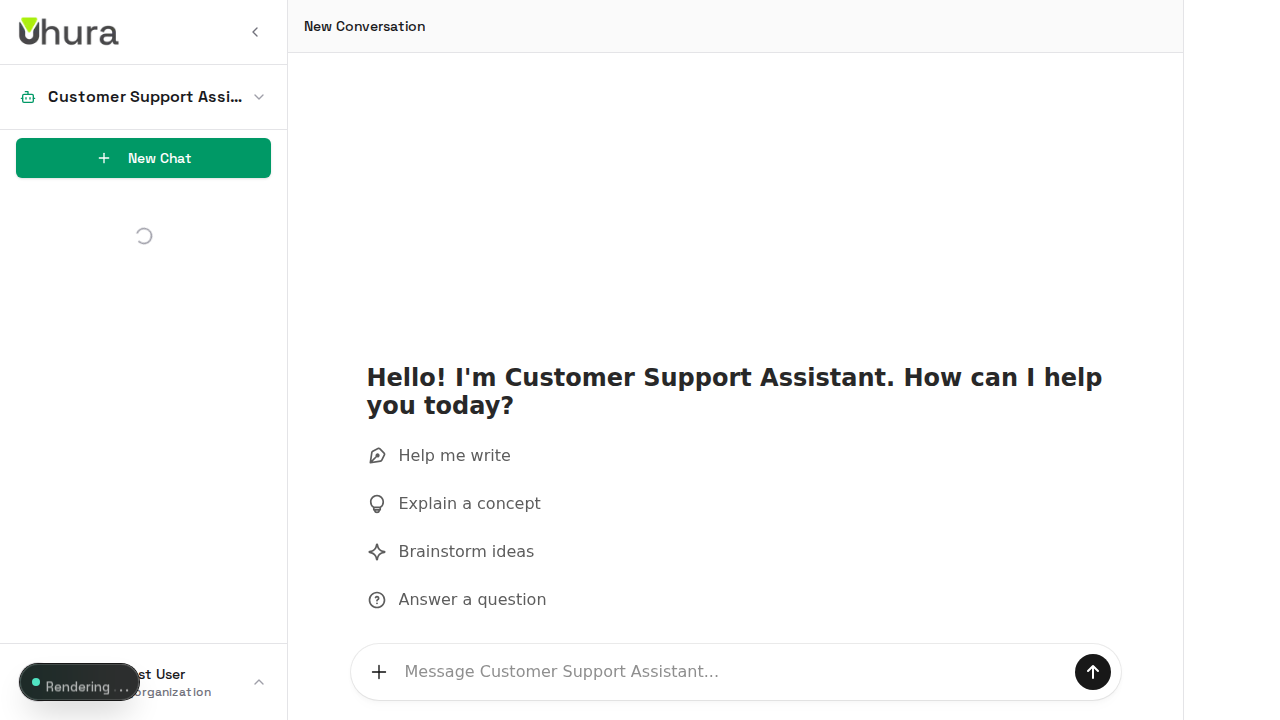
Supported file types include: .md (Markdown), .json (JSON), .csv (CSV), .yaml (YAML), .html (HTML), .txt (Text).
Submit Your Request
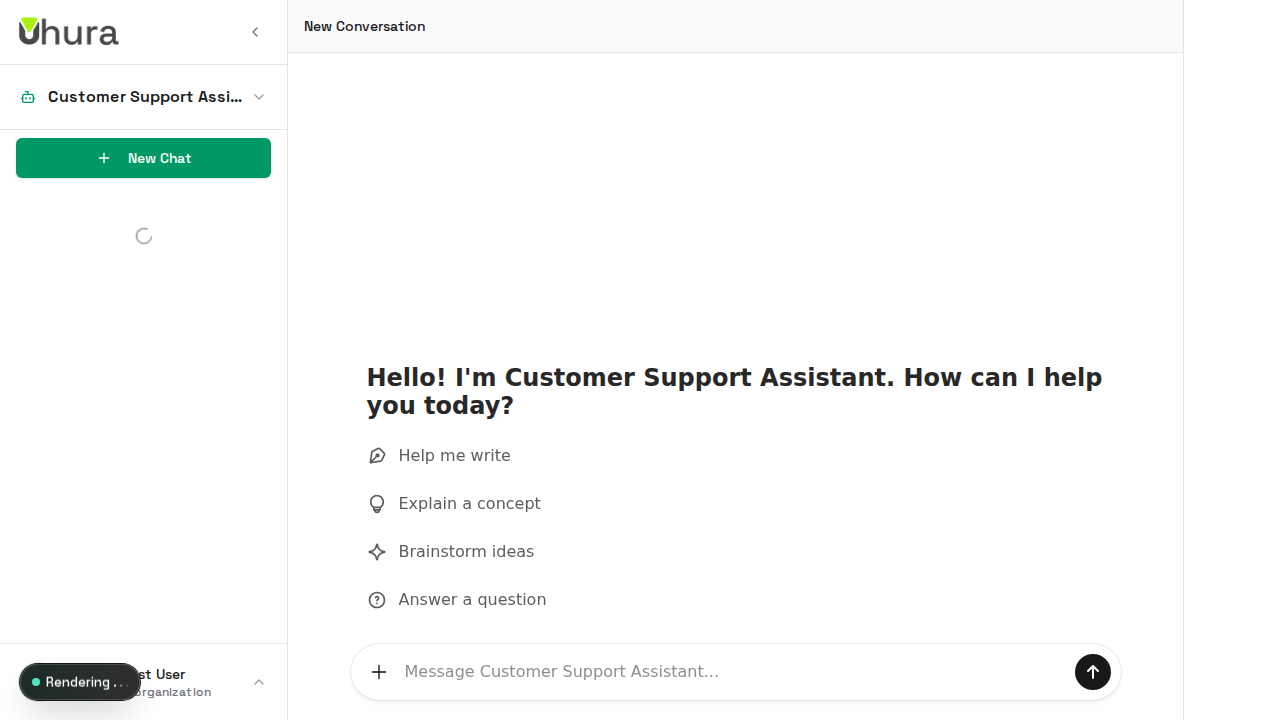
Press Enter or click the send button to submit your request. The AI will process your request and generate the file.
Expected result: The AI will start processing and generate a downloadable file.
Download Your File
Once the file is generated, a download link will appear in the chat response. Click the link to download your file. The file will open in a new tab or download directly depending on your browser settings.
Expected result: Clicking the download link opens the file in a new tab or downloads it.
Files are stored securely and the download links are temporary. Download your files promptly.