Connecting Your Agent to Slack
Learn how to integrate your AI agent with Slack. Once connected, your agent can respond to @mentions and direct messages, bringing AI assistance directly into your team's conversations.
Prerequisites
- An existing agent configured in Uhura
- Admin access to a Slack workspace
Estimated time: 5 minutes
Navigate to Agent Settings
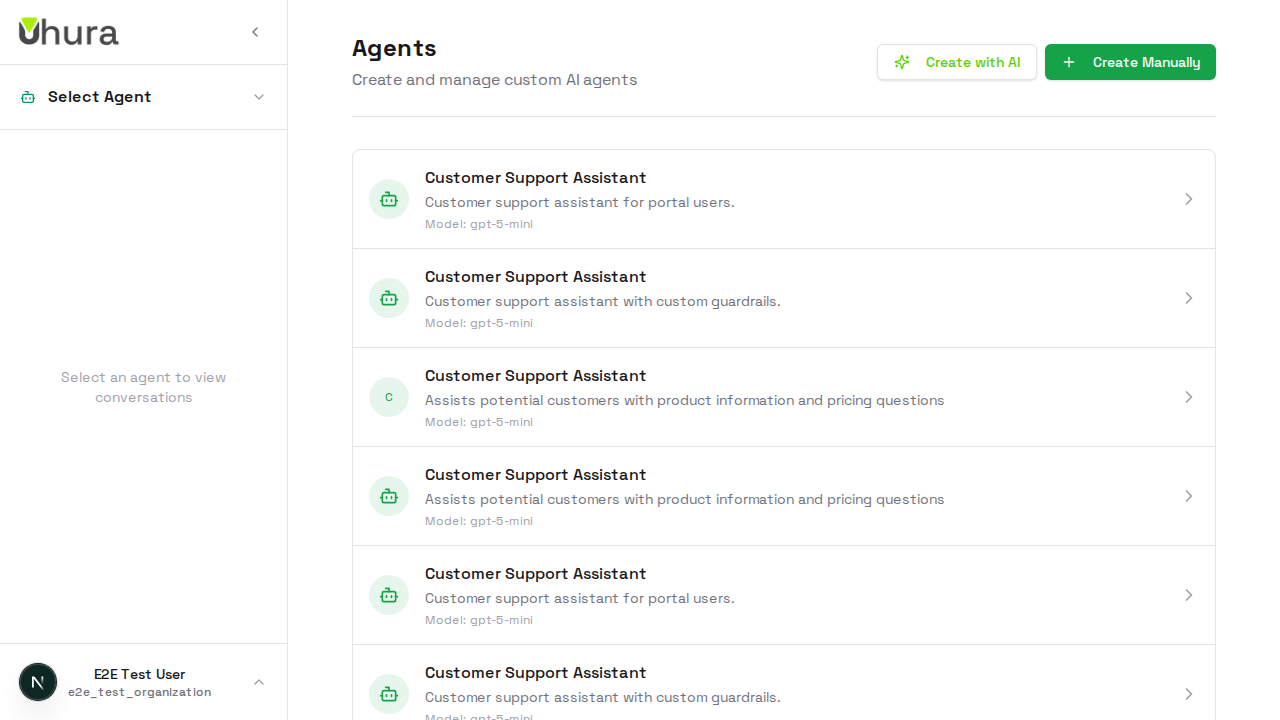
From your dashboard, go to Settings > Agents and select the agent you want to connect to Slack. Your agent will respond to messages in Slack once connected.
Open the Integrations Tab
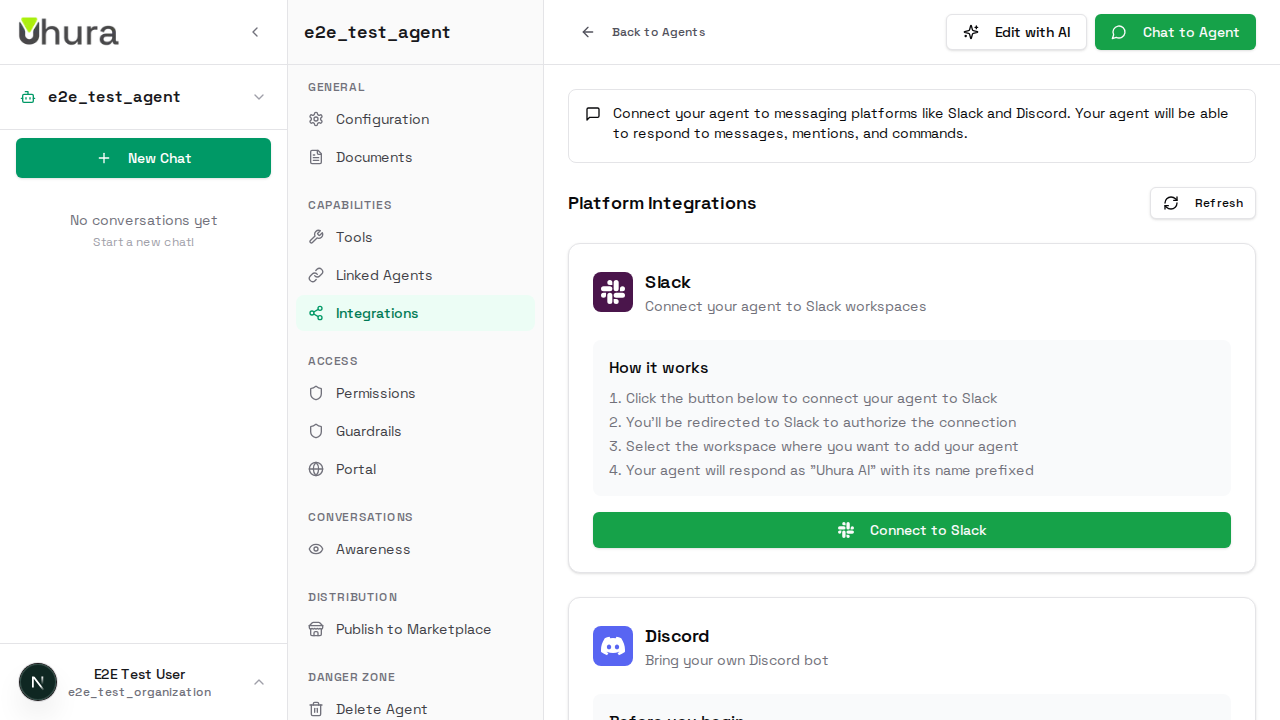
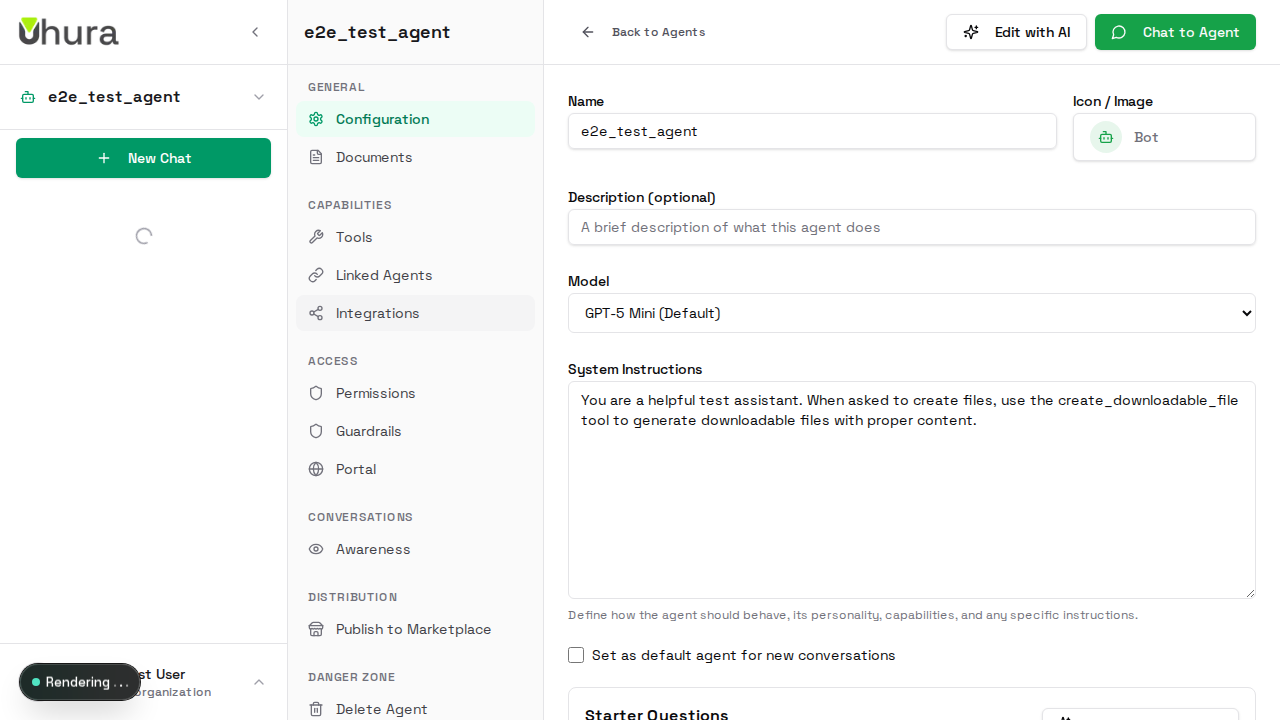
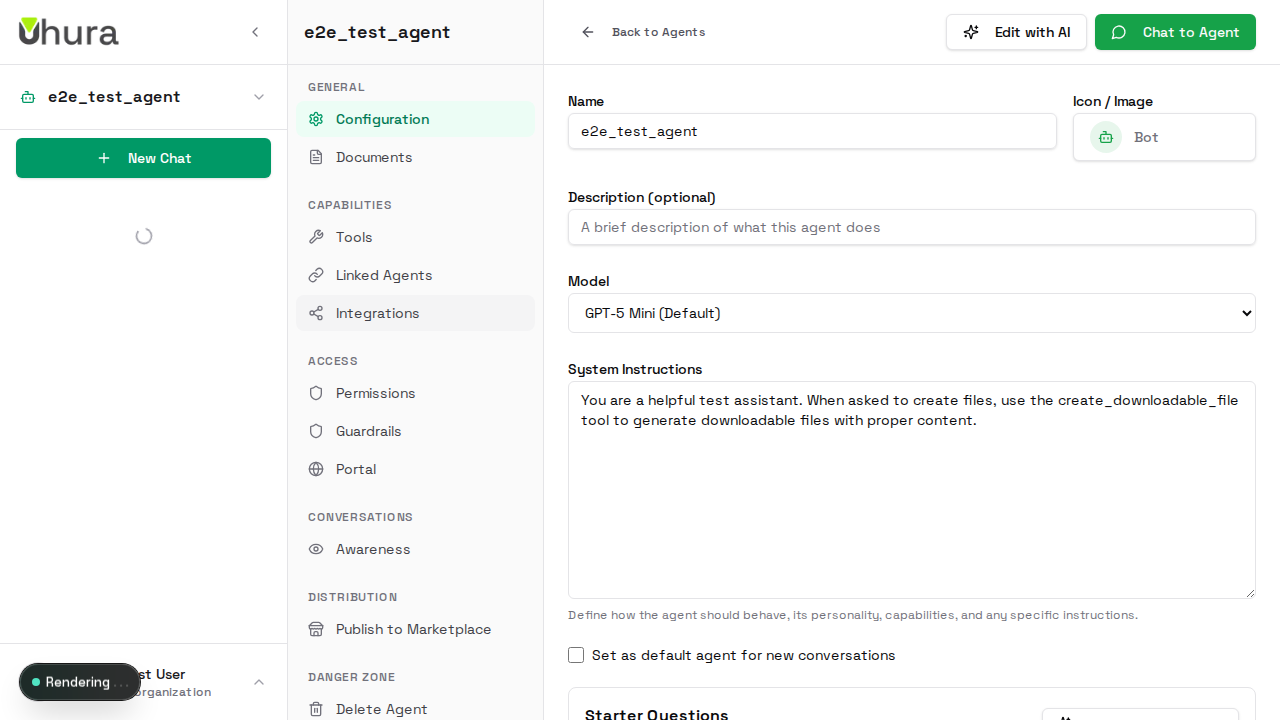
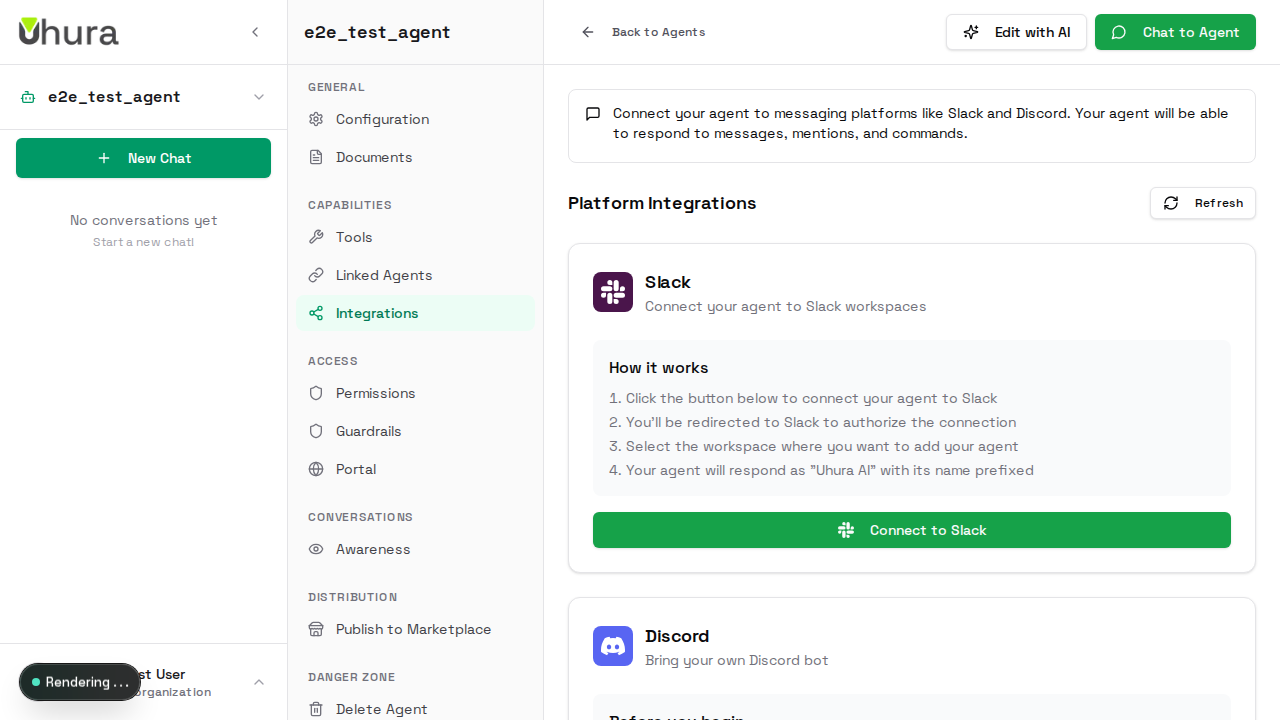
In the agent settings sidebar, click on "Integrations" under the Capabilities section. This is where you connect your agent to messaging platforms like Slack and Discord.
View Available Integrations
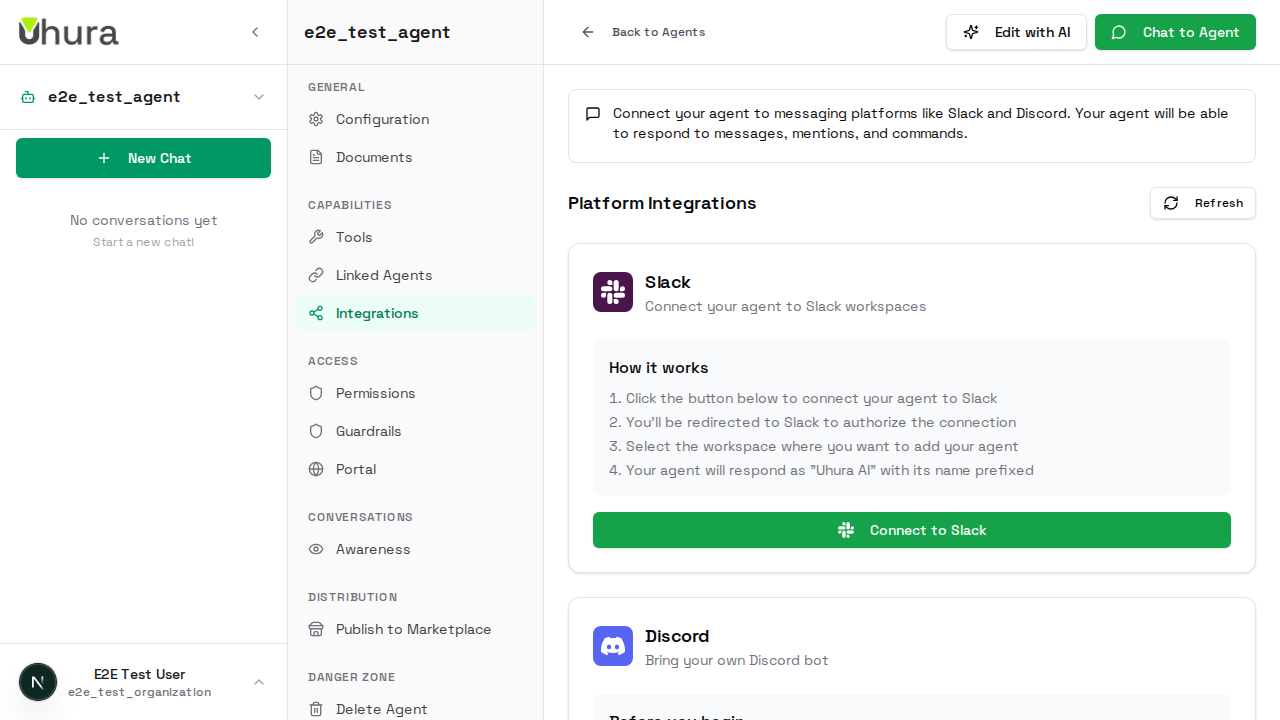
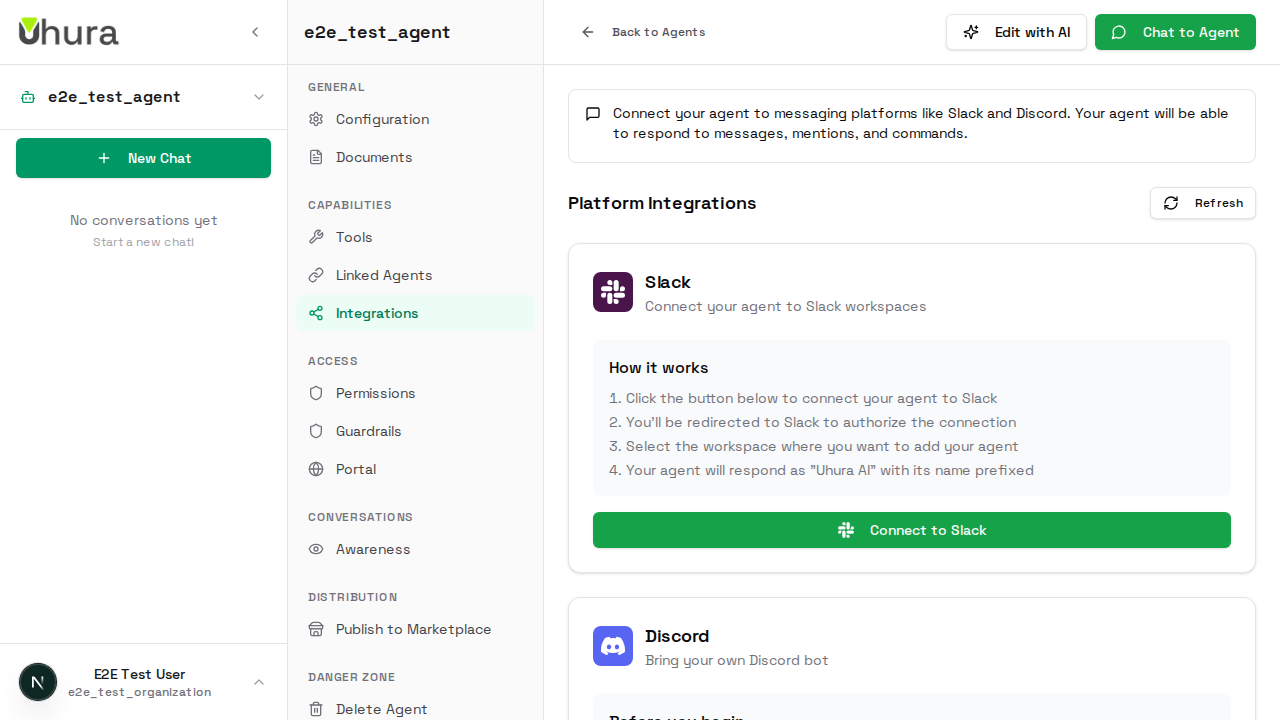
The Integrations tab shows all available platforms you can connect to. Slack offers one-click installation, while Discord requires setting up your own bot. Each integration card shows its current status.
You can connect the same agent to multiple Slack workspaces - perfect for organizations with separate workspaces for different teams.
Connect to Slack
Click "Connect to Slack" to start the installation process. You'll be redirected to Slack to authorize the installation. Select the workspace where you want your agent to respond.
You need admin permissions in your Slack workspace to install apps.
Authorize in Slack
In the Slack authorization page, review the permissions the app needs and click "Allow". The app will be installed to your workspace with your agent's name and capabilities.
Expected result: You're redirected back to Uhura with the integration active.
The app only requests permissions to read messages (when @mentioned) and send responses. No access to private channels unless invited.
Using Your Agent in Slack
Once connected, users can interact with your agent by @mentioning it in any channel where it's a member, or by sending direct messages. The agent maintains conversation context within threads.
Invite your agent to channels using /invite @YourAgentName. It will only respond to @mentions and DMs, not every message.
Managing the Integration
Back in Uhura, you can see the integration status, disable it temporarily, or remove it completely. Disabling pauses the bot without removing the Slack app installation.
Use the disable toggle for maintenance windows or when updating agent instructions - it's faster than reinstalling.
Adding Multiple Workspaces
To connect to additional Slack workspaces, click "Add to Workspace" and repeat the authorization process. Each workspace gets its own installation, all powered by the same agent configuration.